Theme Screenshots & Image Preview
A look at the Beacon theme, plus a demo of the built-in click-to-zoom image preview.
Table of Contents
Every image in a post is click-to-zoom. Click (or focus and press Enter on) any picture below to open it full-screen; press Esc or click the backdrop to close. When a post has several images, use the arrows or the ← / → keys to move between them.
The theme at a glance
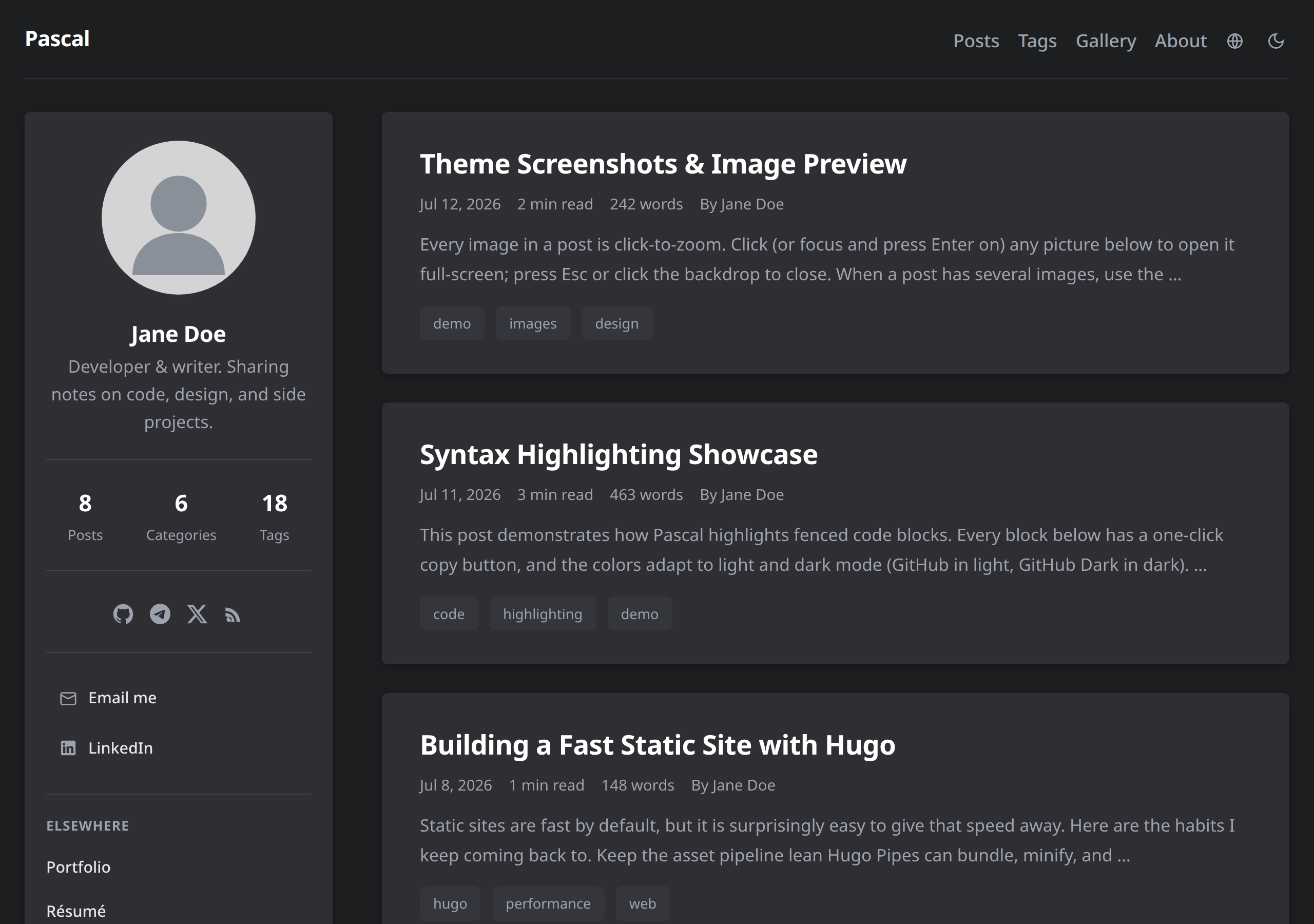
Here is Beacon’s homepage in dark mode — a two-column card layout with a profile sidebar and a paginated post list.
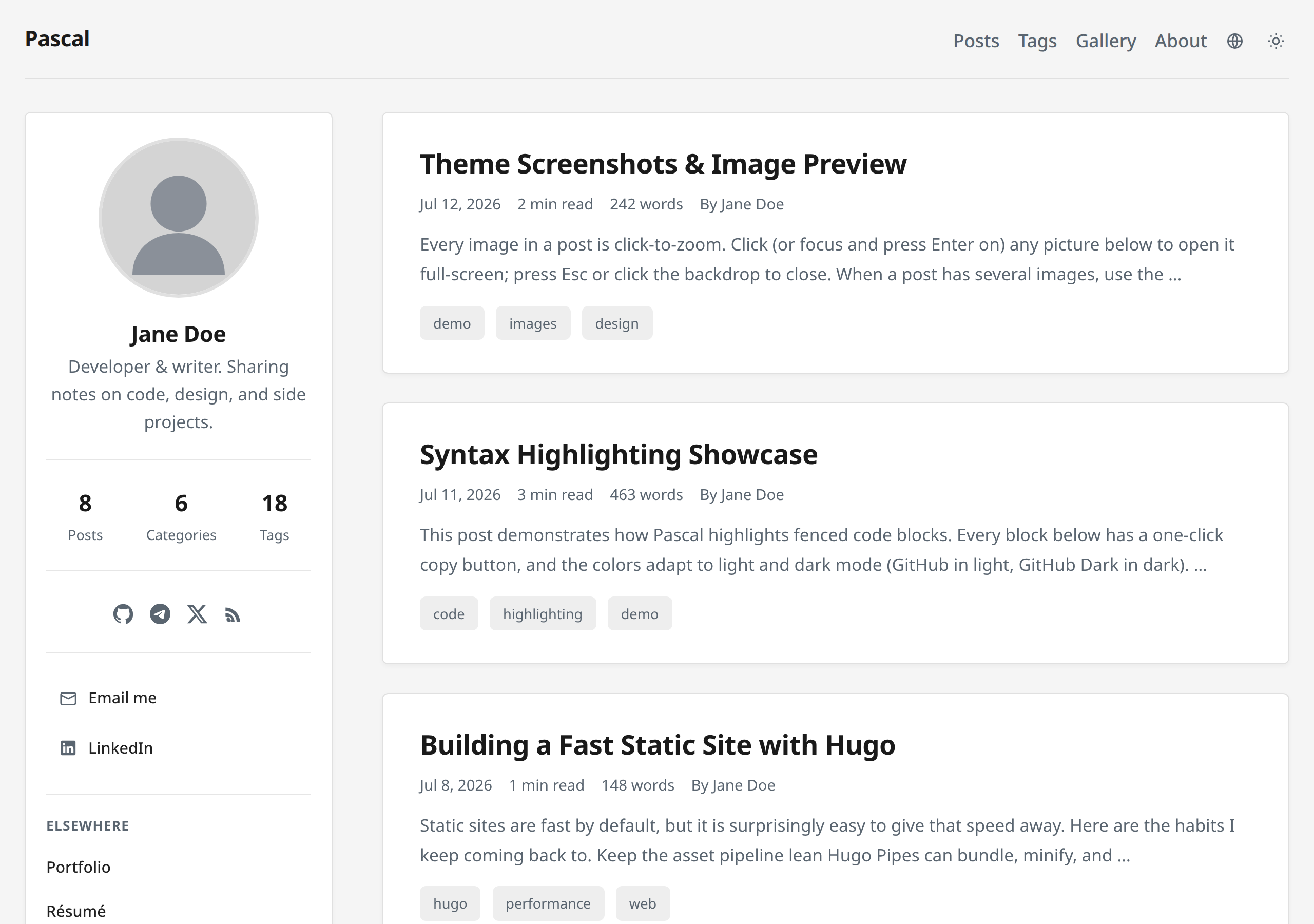
The exact same layout in light mode. Light and dark are designed to read identically; the theme toggle in the header switches between them (and remembers your choice).
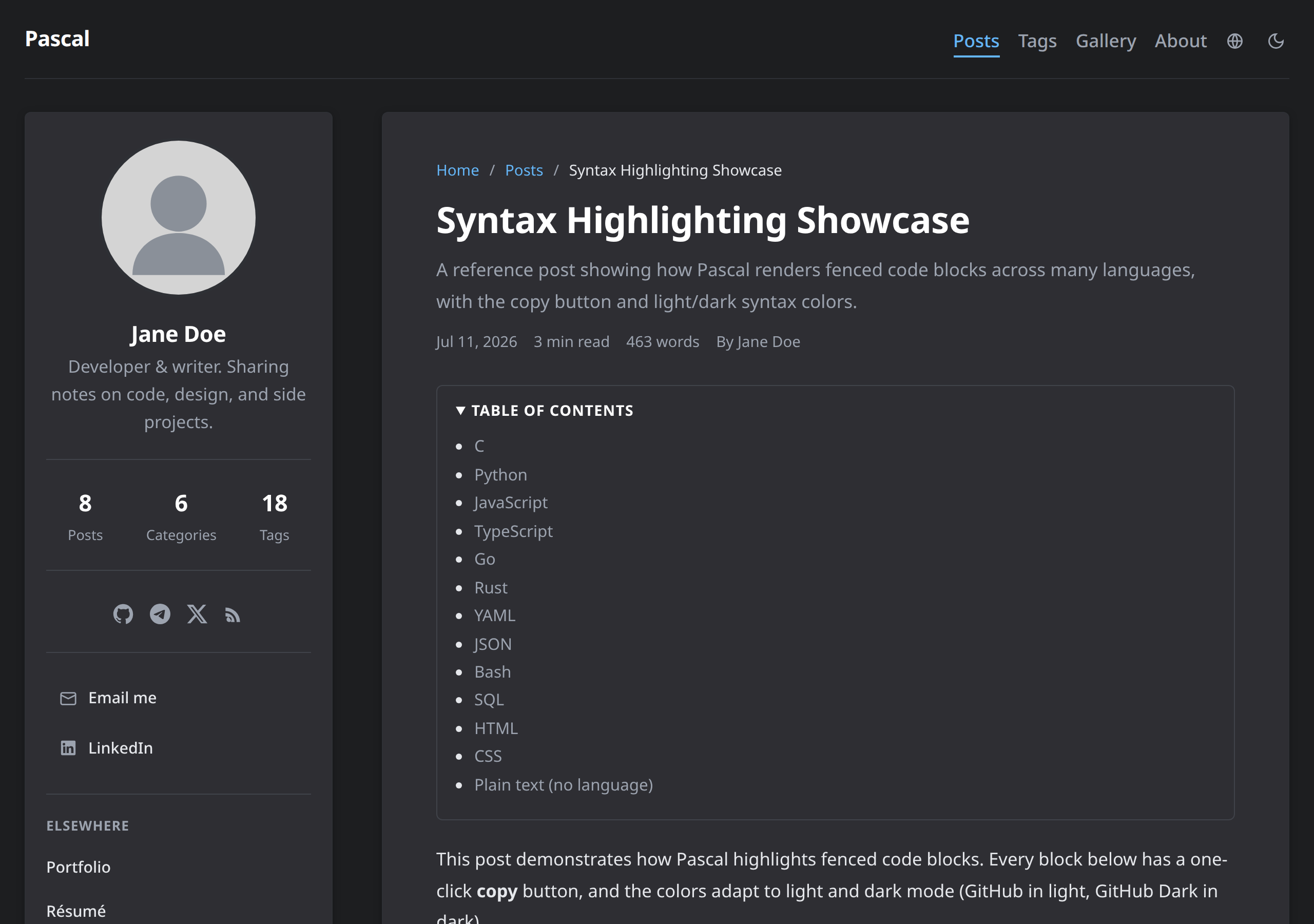
A single post shows a breadcrumb trail, post meta, a collapsible table of contents, and comfortable reading typography.
How the image preview works
Nothing to configure — it is on by default. Write a normal Markdown image and the theme handles the rest:

- The text in quotes becomes a caption under the image and the title in the preview.
- Images are lazy-loaded and decode asynchronously, so a picture-heavy post stays fast.
- The preview is keyboard accessible and honors
prefers-reduced-motion.
Opting out
To keep a specific image from zooming — a small logo or an inline icon, say —
end its caption with #noZoom:

That image renders normally but won’t open the full-screen preview.
Comments